USB4 vs Thunderbolt: what a USB-C port actually promises
The oval hole is the one part of the system that has been standardised. Everything behind it — how fast data moves, whether a monitor will light up, whether an external drive will reach its rated speed — is decided by specifications the port itself does not announce. Here is how to find out what you are buying.
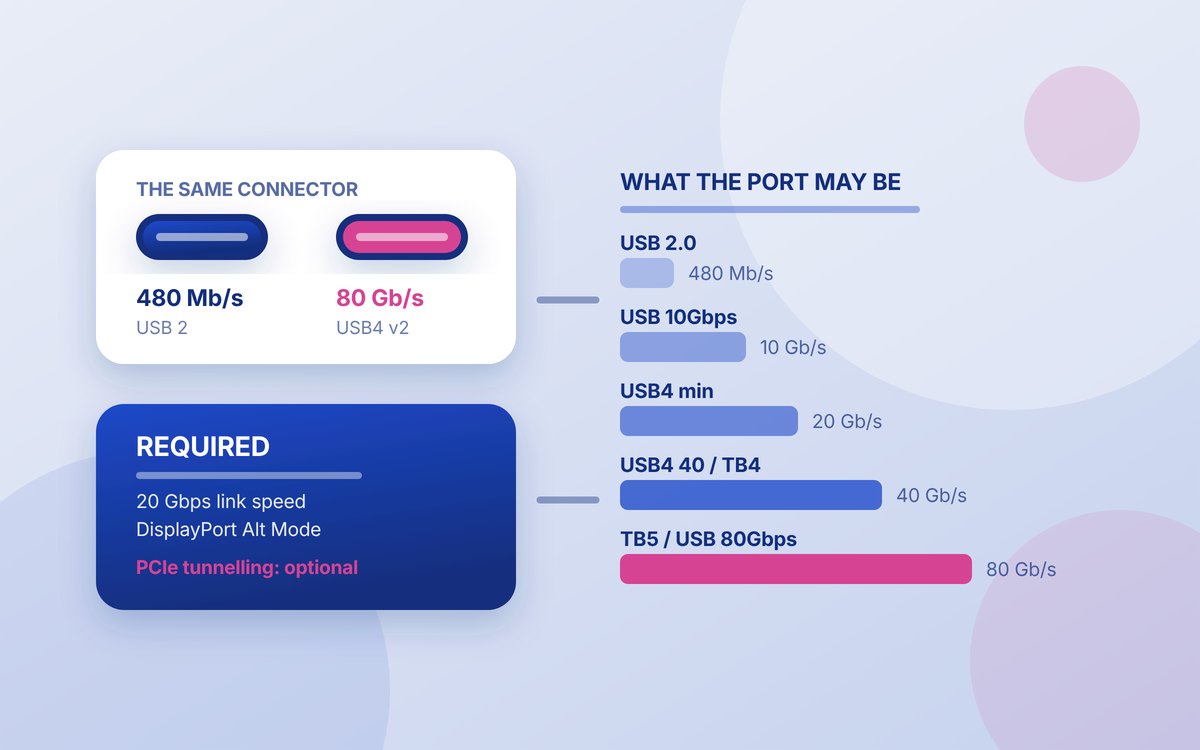
Apple's own specification pages make the problem concrete better than any explanation could. The iPhone 17 has a “USB-C connector with support for: Charging, DisplayPort, USB 2 (up to 480Mb/s)”. The iPhone 17 Pro, sitting beside it on the same shelf, has a “USB-C connector with support for: Charging, DisplayPort, USB 3 (up to 10Gb/s)”. Same connector, same cable, same apparent capability — and a difference of roughly twenty times in how long it takes to pull a week of video off the device.
That gap is not a defect. The connector was deliberately separated from the protocols running through it, which is what allows one socket to carry power, video, storage and networking. The cost is that the socket has stopped being a label. A USB-C port might be a 480 Mb/s USB 2.0 port, a 40 Gb/s USB4 port, or a Thunderbolt 5 port driving two high-resolution monitors and a graphics enclosure at once. Nothing about the shape distinguishes them.
This guide works through what each of the relevant specifications actually obliges a manufacturer to deliver, using the published documents from the USB Implementers Forum, Intel and VESA. There are no measurements of our own here; every figure below is a specification minimum or a published vendor claim, and where it is the latter it is attributed.
On this page
The short answer
- USB-C is a connector, not a speed. The slowest and the fastest ports in your house may be physically identical.
- USB4 guarantees less than its name suggests. Per the USB-IF's own system overview, a USB4 host “supports 20 Gbps operation and optionally 40 Gbps operation”, and PCIe tunnelling — the mechanism docks and external graphics enclosures depend on — is optional.
- DisplayPort is the one thing USB4 does mandate. A USB4 host “is required to support DisplayPort Alt Mode” on its downstream ports.
- Thunderbolt is a certification programme, so it sets floors. Intel's comparison lists 40 Gbps and 32 Gbps of PCIe as Thunderbolt 4 minimums, rising to 80/120 Gbps and 64 Gbps of PCIe for Thunderbolt 5, plus mandatory DMA protection and wake-from-sleep.
- Ignore the specification names on packaging. USB-IF says plainly that “USB specification names and technical terminology are not intended for use when describing USB capabilities to end consumers”. Look for the plain-number logos: USB 5Gbps, 10Gbps, 20Gbps, 40Gbps, 80Gbps.
Three naming systems in ten years
Part of the confusion is self-inflicted, and it helps to see the history laid out, because all three vocabularies are still printed on products being sold today.
The first was the SuperSpeed family. USB-IF's language guidelines for USB 3.2 recommended “SuperSpeed USB” for 5 Gbps products, “SuperSpeed USB 10Gbps” for 10 Gbps and “SuperSpeed USB 20Gbps” for 20 Gbps. Underneath sat the engineering names — USB 3.2 Gen 1, Gen 2 and Gen 2×2 — which were never meant for shop shelves but ended up there anyway.
The second system arrived with USB4, whose language guidelines recommend the product names “USB4 20Gbps” and “USB4 40Gbps” and insist that vendors “must clearly communicate the performance signaling that a product delivers”. The same document is unusually blunt about what USB4 is not: it “is not SuperSpeed USB, USB Type-C, USB Standard-A, Micro-USB, or any other USB cable or connector”, and it “is not USB Power Delivery or USB Battery Charging”. Four separate things people routinely assume travel together, disclaimed in two sentences.
The third and current system dropped the words altogether. The USB Performance Logo guidelines define packaging logos, port logos and device power port logos across five tiers — USB 5Gbps, USB 10Gbps, USB 20Gbps, USB 40Gbps and USB 80Gbps — so that the mark beside a socket states a number rather than a generation. This is the labelling worth hunting for, and it is the only one designed to be read by a buyer rather than an engineer.
| Engineering name | Old consumer name | Current logo | Rate |
|---|---|---|---|
| USB 3.2 Gen 1 | SuperSpeed USB | USB 5Gbps | 5 Gb/s |
| USB 3.2 Gen 2 | SuperSpeed USB 10Gbps | USB 10Gbps | 10 Gb/s |
| USB 3.2 Gen 2×2 | SuperSpeed USB 20Gbps | USB 20Gbps | 20 Gb/s |
| USB4 Gen 2×2 | USB4 20Gbps | USB 20Gbps | 20 Gb/s |
| USB4 Gen 3×2 | USB4 40Gbps | USB 40Gbps | 40 Gb/s |
| USB4 Version 2.0 | — | USB 80Gbps | 80 Gb/s |
What USB4 actually requires
USB4 is best understood not as a speed but as a tunnel. Rather than defining one protocol, it establishes a high-speed link over which other protocols are carried: DisplayPort, PCI Express, and USB 3.2 data, each tunnelled across the same pair of wires and sharing the available bandwidth. Underneath it all, USB 2.0 runs on its own dedicated wires, which is why even a badly negotiated USB4 connection usually still does something.
The critical detail, and the one that explains most disappointed dock purchases, is which of those tunnels a manufacturer has to implement. USB-IF's USB4 system overview is explicit: a USB4 host “supports 20 Gbps operation and optionally 40 Gbps operation”, is “required to support DisplayPort Alt Mode on all of its” downstream ports, and may “optionally support PCIe Tunneling”. A peripheral device, likewise, “supports 20 Gbps and optionally 40 Gbps operation”.
Read that again with a shopping list in mind. A laptop can be entirely, honestly USB4-compliant while running at half the headline rate and refusing to carry PCIe at all. It will still drive a monitor, because DisplayPort is mandatory. It will still charge, because charging is handled separately by USB Power Delivery — a different specification with its own markings, covered in our guide to what USB-C wattage figures actually mean. But an external SSD enclosure that expects an NVMe drive to appear over PCIe, or a graphics enclosure, may simply not work.
Keep reading
USB4 Version 2.0 and the 80Gbps tier
In October 2022 USB-IF published USB4 Version 2.0, which doubled the aggregate bandwidth to “USB 80Gbps performance over the USB Type-C cable and connector”. It did so with “a new physical layer architecture based on PAM3 signal encoding” — three voltage levels per symbol rather than two, which is how the rate doubles without doubling the clock. The update also “aligns with DisplayPort Revision 2.1 and PCI Express Revision 4” and allows USB data tunnelling to “exceed 20 Gbps”, while maintaining “backward compatibility with all previous versions of USB”.
Two practical consequences follow. The 80 Gbps tier needs cables and both endpoints built for it, so a Version 2.0 host attached to a 40 Gbps dock negotiates down, quietly and correctly. And because the new encoding lives in the physical layer, there is no firmware route from an existing 40 Gbps port to 80 Gbps: it is new silicon, which is why 80 Gbps ports arrived on new machines only.
What Thunderbolt certification adds
Thunderbolt 4 and Thunderbolt 5 are built on USB4, but they are administered as an Intel certification programme rather than as an open specification — and that difference is the entire point. A certification programme can impose minimums, and Intel does. Its published comparison lists, for Thunderbolt 4, a “40Gbps minimum required bandwidth”, “dual monitor support at up to 4K minimum resolution”, 32 Gbps of PCIe, required wake-from-sleep when the machine is attached to a Thunderbolt dock, and required Intel VT-d-based DMA protection — the last being a security feature rather than a performance one, and a genuine reason to prefer a certified port on a laptop that travels.
Thunderbolt 5 raises the floor again: 80 Gbps bidirectional, with 120 Gbps available through Bandwidth Boost, which in the wording of Intel's technical brief rebalances the link to “120 Gbps for transmit traffic while providing 40 Gbps for receive” when displays demand it; PCIe doubles to 64 Gbps; and the link is built on DisplayPort 2.1. One point of care: Intel's current comparison page lists dual 8K displays for Thunderbolt 5, while its September 2023 brief described dual 6K. Both are Intel's own numbers from different moments, so read the lower one as the dependable figure.
| Guarantee | USB4 (base) | Thunderbolt 4 | Thunderbolt 5 |
|---|---|---|---|
| Minimum link rate | 20 Gb/s | 40 Gb/s | 80 Gb/s (120 with Bandwidth Boost) |
| 40 Gb/s operation | Optional | Required | Required |
| PCIe tunnelling | Optional | Required, 32 Gb/s | Required, 64 Gb/s |
| DisplayPort | Alt Mode required | Dual 4K minimum | DisplayPort 2.1; Intel lists dual 8K |
| DMA protection | Not specified | Required (VT-d) | Required (VT-d) |
| Wake from sleep via dock | Not specified | Required | Required |
| Charging a laptop | Separate spec (USB PD) | Required on at least one port | Required on at least one port, up to 140 W |
The short version: Thunderbolt 4 is roughly “USB4 with the optional parts made compulsory”, plus a security requirement and better behaviour around docks. What you pay for is certainty, not a peak number.
Displays: the part that quietly eats the link
Video is the greediest thing most people put through a USB-C port, and it is where the arithmetic catches people out. VESA's DisplayPort 2.1 release describes tightened alignment with “the USB Type-C specification as well as the USB4 PHY specification” so that both protocols can share one physical layer, and adds a bandwidth management feature allowing “DisplayPort tunneling to coexist with other I/O data traffic more efficiently over the USB4 link”.
That phrase — coexist with other traffic — is the one to hold on to. On a USB4 link the display stream and the data stream are not separate pipes. A high-refresh, high-resolution display can claim a large share of a 40 Gbps link, and the external drive plugged into the same dock gets what remains. It is the reason a dock that benchmarks well with nothing else attached can feel sluggish in normal use, and the reason Thunderbolt 5's Bandwidth Boost exists at all.
Compression is the escape valve. DisplayPort 2.1 makes support for DSC mandatory, which VESA describes as achieving a “reduction of DisplayPort transport bandwidth in excess of 67 percent without visual artifacts”. Visually lossless is not mathematically lossless, but the distinction matters only for a narrow set of professional work.
On the cable side, VESA's certification tiers are refreshingly literal: DP40 cables support up to UHBR10 across four lanes for 40 Gbps of throughput, and DP80 cables support UHBR20 for 80 Gbps. DisplayPort 2.1 also updated the cable specification to permit longer runs — beyond two metres for DP40 and beyond one metre for DP80 — without losing the rated performance. If you are matching a monitor to a port, our monitor buying guide covers which of those resolutions and refresh rates are worth paying for in the first place.
Advertisement
Cables, and why length matters again
For most of USB's history the cable was the part you could ignore. At 80 Gbps it is not. Intel states that universal Thunderbolt 5 cables support 120 Gbps speeds “up to 2 meters in length” — a specific, bounded claim, and a reminder that passive copper has a physical limit that marketing cannot argue with. Beyond those lengths you are into active cables, which contain signal-conditioning electronics and cost accordingly.
Three habits save most of the trouble. Buy cables carrying the plain-number performance logo rather than a vague “high speed” claim; keep one known-good short cable for transfers and let the three-metre one do charging duty behind the desk; and when a drive underperforms, swap the cable before blaming the drive. A cable that charges perfectly well may still be a USB 2.0 cable.
It is worth noting what the law does not settle. The EU's common charger rules standardised the connector on new phones and tablets, not the data rate behind it: a fully compliant USB-C port can still be a 480 Mb/s port, as Apple's own pages demonstrate. Our guide to the EU energy label on phones covers what that regime does guarantee.
What to check before you buy
- Find the number, not the name. On the box or the port, look for USB 5Gbps, 10Gbps, 20Gbps, 40Gbps or 80Gbps. “USB-C” on its own tells you the shape of the hole.
- If you want a dock or an external NVMe enclosure, check for PCIe or Thunderbolt explicitly. USB4 alone does not promise it. A Thunderbolt 4 or 5 logo does.
- Count your displays against the link, not against the dock. Two high-resolution monitors plus fast storage on one 40 Gbps link means something gives.
- Check the laptop's own port before buying the accessory. Machines often mix a fast port with a slow one on opposite edges, and the specification page says which is which.
- Treat Thunderbolt as insurance. It costs more and guarantees more, including DMA protection against malicious devices — worth having on a laptop you plug into other people's hardware.
- Keep charging and data separate in your head. Wattage is governed by USB Power Delivery and says nothing at all about speed.
None of this is likely to get simpler: the connector was standardised precisely so the capabilities behind it could keep changing. The one durable habit is to stop reading the socket and start reading the small printed number beside it — which, after three attempts, is the part USB-IF has finally made easy.
Sources
- USB-IF — USB4 System Overview (host supports 20 Gbps and optionally 40 Gbps; DisplayPort Alt Mode required on all downstream ports; PCIe tunnelling optional; peripheral device requirements)
- USB-IF — announcement of USB4 Version 2.0 (USB 80Gbps over USB Type-C; PAM3 signal encoding; alignment with DisplayPort 2.1 and PCI Express 4; backward compatibility; specification names not intended for consumer use)
- USB-IF — USB Performance Logo Usage Guidelines (packaging, port and device power port logos; the five tiers USB 5Gbps to USB 80Gbps)
- USB-IF — USB4 language, product and packaging guidelines (“USB4 20Gbps” and “USB4 40Gbps” naming; vendors must communicate performance; USB4 is not SuperSpeed USB, USB Type-C, USB Power Delivery or USB Battery Charging)
- USB-IF — USB 3.2 language, product and packaging guidelines (SuperSpeed USB, SuperSpeed USB 10Gbps and SuperSpeed USB 20Gbps recommended for 5, 10 and 20 Gbps products)
- Intel — Thunderbolt technology overview (Thunderbolt 4: 40Gbps minimum required bandwidth, dual 4K minimum display support, PCIe 32 Gbps, required wake from sleep via dock, required VT-d-based DMA protection; Thunderbolt 5: 80 and 120 Gbps, PCIe 64 Gbps, dual 8K listed)
- Intel — Thunderbolt 5 technical brief, September 2023 (80 and 120 Gbps; Bandwidth Boost rebalancing to 120 Gbps transmit and 40 Gbps receive; PCIe 64 Gbps; DisplayPort 2.1; dual 6K; 140 W charging; 2 m universal cables)
- VESA — DisplayPort 2.1 specification release (alignment with the USB Type-C and USB4 PHY specifications; bandwidth management for DisplayPort tunnelling over USB4; DP40 and DP80 cable tiers at 40 and 80 Gbps; mandatory DSC with bandwidth reduction in excess of 67 per cent; longer certified cable lengths)
- Apple — iPhone 17 technical specifications (USB-C connector with support for charging, DisplayPort, USB 2 up to 480Mb/s)
- Apple — iPhone 17 Pro tech specs (USB-C connector with support for charging, DisplayPort, USB 3 up to 10Gb/s; USB 3 cable required for the rated speed)