exFAT, NTFS or APFS: how to format an external drive
The menu looks like a technical question and is really a social one: how many different computers will touch this disk, and does anything on it matter enough to survive a bad unplug? Answer those two and the format chooses itself.
Plug a new external drive into a Windows PC and it will usually just work, because the manufacturer formatted it at the factory for exactly that. Plug the same drive into a Mac and you may be able to read it and not write to it. Copy a 6 GB video onto a memory stick and the copy may fail at the last moment with no explanation worth reading. All three are the same question appearing in three disguises: a disk has to be organised according to some file system, and the file systems are not equally understood by the machines you own.
There are only four realistic answers in the menus that Windows and macOS actually offer, and each one is a trade of compatibility against capability. Nothing here is a matter of speed, and almost nothing is a matter of preference.
On this page
The short answer
- One computer only, and it is a PC: NTFS. One computer only, and it is a Mac: APFS. These are the formats the operating system was built around, and they are the only ones that keep a proper log of what they were doing.
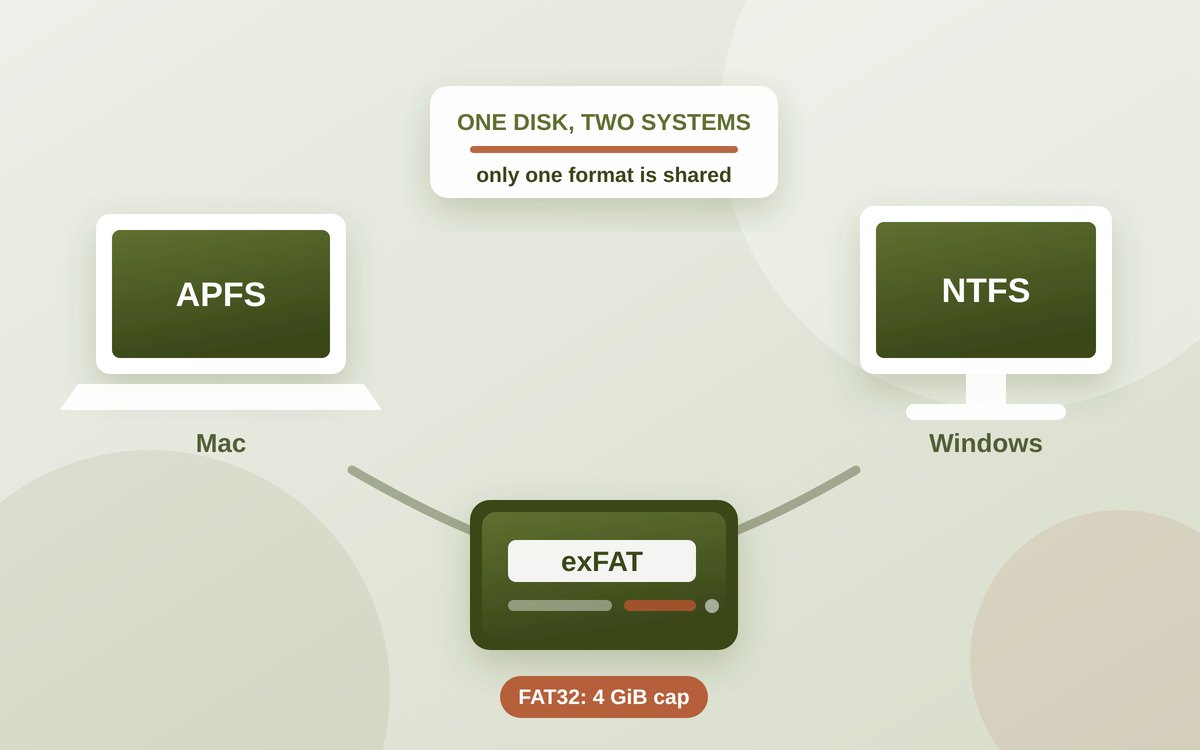
- Moving between a Mac and a PC: exFAT. It is the only format both systems will create and write to out of the box, and Apple names it explicitly for Windows volumes over 32 GB.
- A backup disk is not a choice. Apple's documentation says Time Machine "can't back up to… a disk formatted for Windows", so a Time Machine disk has to be APFS or Mac OS Extended, full stop.
- Avoid FAT32 unless something forces it, because no single file on it may exceed 4 GiB — a limit Microsoft states outright in its own file system comparison.
- exFAT's convenience has a cost: it has no journal. The base specification Microsoft publishes relies on a single "volume dirty" flag rather than a transaction log, which is why yanking an exFAT drive mid-write is a genuinely worse idea than doing the same to an NTFS or APFS one.
What a format decides
A drive, electrically, is a very long numbered row of blocks. A file system is the bookkeeping laid on top of it: where each file's blocks are, what the file is called, when it changed, who may open it, and which blocks are free. Formatting writes a fresh, empty set of that bookkeeping, which is why it appears to erase everything.
Because the bookkeeping is a convention rather than a property of the hardware, a computer can only use a disk whose convention it has been taught. That is the whole of the compatibility problem. It also means the format fixes four things that are awkward to change later: the largest single file allowed, the largest volume allowed, whether permissions travel with the files, and whether the file system can recover its own consistency after an interruption.
The four options you are given
Apple's Disk Utility documentation lists what a Mac can create: APFS in four variants — plain, encrypted, case-sensitive, and case-sensitive encrypted — plus ExFAT, described as being for "Windows volumes that are over 32 GB", and MS-DOS (FAT), "for Windows volumes that are 32 GB or less". APFS itself Apple describes as "the file system used by macOS 10.13 or later". Notably, NTFS is not on that list at all: a Mac will mount a Windows-formatted NTFS disk, but Apple ships no way to create one, and no way to write to one without a third-party driver.
Windows is the mirror image. Microsoft's file system comparison covers NTFS, exFAT, FAT32 and UDF; APFS does not appear, and Windows ships no driver for it, so a Mac-formatted APFS disk will not mount on a PC. Put the two lists side by side and exactly one format is in both: exFAT.
| Format | Windows | macOS | Max file size | Journal | Permissions |
|---|---|---|---|---|---|
| NTFS | Create, read, write | Read only as shipped | 264−1 bytes | Yes | Yes (ACLs) |
| APFS | Not supported | Create, read, write | Vast in practice | Copy-on-write metadata | Yes |
| exFAT | Create, read, write | Create, read, write | 264−1 bytes | No | No |
| FAT32 | Create, read, write | Create, read, write | 4 GiB | No | No |
Limits for NTFS, exFAT and FAT32 as stated in Microsoft's file system functionality comparison; the macOS column reflects Apple's Disk Utility documentation. Third-party drivers change the NTFS row.
The 4 GB wall
FAT32 is the format behind one of computing's most familiar failures: a copy that runs happily and then dies near the end, on a drive with plenty of room left. Microsoft's comparison table gives the reason in one line. Maximum file size on FAT32 is 4 GiB; on both NTFS and exFAT it is 264−1 bytes. A 4.7 GB disc image, an hour of phone video, a virtual machine, a large database export — each is an ordinary file that FAT32 cannot represent, because the field it keeps the length in is 32 bits wide.
There is a second FAT32 limit that is often misread. For about thirty years Windows refused to format a FAT32 volume larger than 32 GB, which many people took to be the format's ceiling. It was not: Microsoft's table puts the volume limit at 232 blocks, far above 32 GB, and the 32 GB figure was a restriction in Windows' own formatting tool. BleepingComputer and others reported in 2024 that Microsoft had raised that tool's cap to 2 TB in Windows 11 Insider builds. The file-size limit, which is the one that actually bites, is unchanged.
So FAT32 has exactly one modern justification: a device that demands it. Some cameras, older car head units, some printers and plenty of embedded hardware only speak FAT32. If a manual says FAT32, use FAT32, keep the files small, and do not use that disk for anything else.
Advertisement
exFAT, and the price of the lowest common denominator
exFAT is the answer to the question most people are actually asking, and it is worth understanding why it is both so portable and so fragile. It is portable partly by deliberate policy: in 2019 Microsoft announced it would publish the specification, saying "we will be making Microsoft's technical specification for exFAT publicly available" and that "we also support the eventual inclusion of a Linux kernel with exFAT support". Phoronix reported an initial driver arriving in Linux 5.4's staging tree and a Microsoft-contributed driver landing in mainline with Linux 5.7. That is why a modern Linux box, a Mac, a PC and most cameras all understand the same disk.
It is fragile because of what it leaves out. Read Microsoft's published exFAT specification and the absence is
explicit: the base file system has no journal. Crash consistency rests on a single VolumeDirty flag,
which implementations "should set… to 1 before updating file system metadata and clear… to 0
afterwards". A transaction-safe variant exists — TexFAT, which "requires the use of the two FATs and
allocation bitmaps for use in transactions" — but the specification identifies that as a Windows CE
feature, not something the exFAT volume on your desk is using.
In practice an interrupted write on exFAT can leave the bookkeeping in a state the file system has no record of, and no log to replay. The symptom is rarely one damaged file; it is a directory that has gone strange, or a volume that needs checking and comes back with files in a recovery folder. exFAT also carries no ownership or permission information at all.
None of this makes exFAT a bad choice. It makes it a transport format. Eject it properly, and do not let it be the only copy of anything.
NTFS and APFS: the ones with a safety net
The two native formats earn their place by keeping a record of their own intentions. Microsoft describes NTFS
as maintaining "a transaction-based log file and checkpoint information" so that consistency can be restored at
the next start-up after a failure, with self-healing NTFS repairing minor corruption in the background and
chkdsk handling the rest while the volume stays online. On top of that it offers detailed
permissions through access control lists, file system compression, per-user disk quotas and BitLocker
integration. Its volume ceiling depends on cluster size: 16 TB at the 4 KB default, 256 TB at 64 KB, and up to
8 PB at the 2048 KB maximum on recent Windows versions.
APFS is the macOS equivalent, and the one Apple now assumes. Its copy-on-write design writes metadata updates to new locations rather than editing them in place, which is what makes its snapshots cheap and its recovery after an interruption sane. Apple offers encrypted and case-sensitive variants in the format menu itself, so encrypting an external drive is a checkbox rather than a project.
Backup disks have no choice
This is the case where the format menu is not really a menu. Apple's documentation on disks you can use with Time Machine says "APFS or APFS Encrypted disks are the preferred format for a Time Machine backup disk", notes that "Time Machine still supports backups on Mac OS Extended format (Journaled)", and states plainly that Time Machine "can't back up to… a disk formatted for Windows". An exFAT or NTFS disk will not serve as a Time Machine target; you reformat it, which destroys what is on it, or you use a different disk.
The logic generalises beyond Apple. Backup systems have to record ownership, permissions and timestamps faithfully and to survive being interrupted — a half-finished backup is the worst moment for the bookkeeping to become unrecoverable. A format with no permissions model and no journal cannot do that job. If a drive holds your only spare copy, give it the native format and keep a second copy elsewhere, which is the point of the 3-2-1 rule.
Keep reading
Cards and cameras decide for you
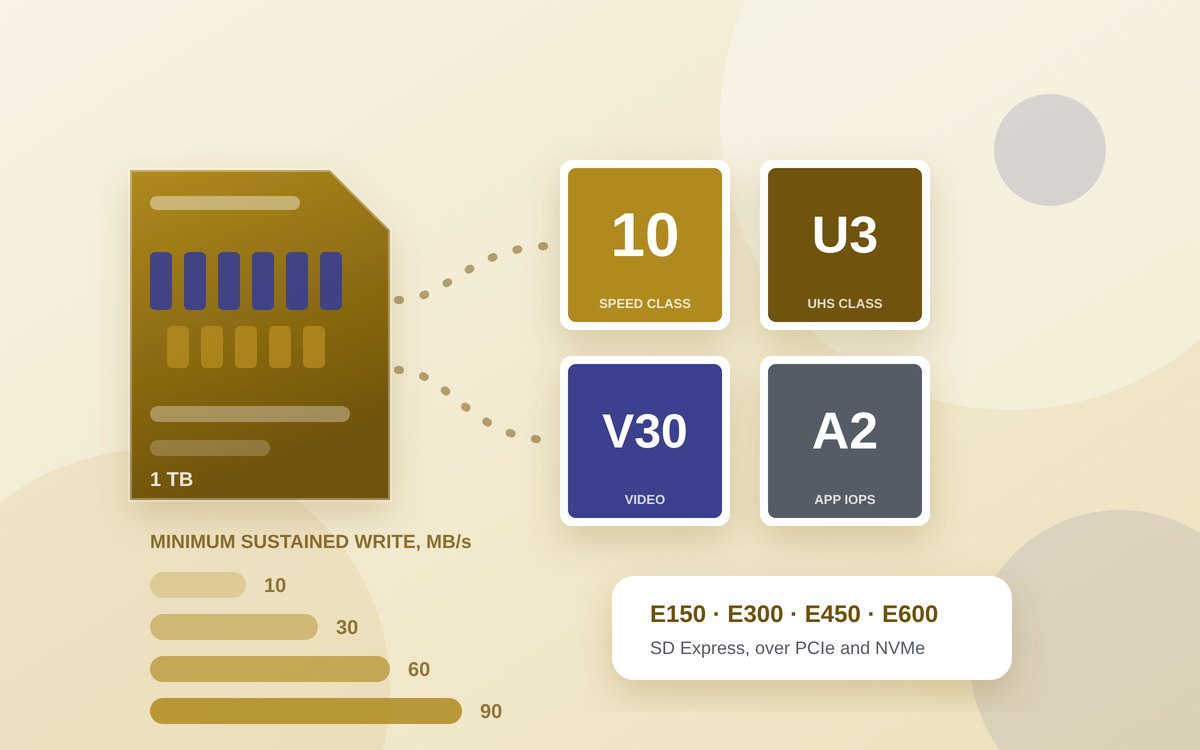
Removable cards are the one place where the format is written into the standard rather than left to you. The SD Association ties each capacity class to a file system: SD up to 2 GB uses FAT12 or FAT16, SDHC from 2 GB to 32 GB uses FAT32, SDXC above 32 GB to 2 TB uses exFAT, and SDUC above 2 TB to 128 TB also uses exFAT.
That mapping explains a common frustration. A camera that supports only SDHC is not merely objecting to a larger card's capacity; it does not implement exFAT. Reformatting a 128 GB SDXC card to FAT32 sometimes helps and sometimes does not, because the device may be checking the card's declared class rather than reading the file system. It is also why cards are best formatted in the device that will use them. The capacity class is where the speed markings live too, and those symbols are a separate code worth decoding.
Doing it, and the one setting worth changing
Formatting destroys the contents of the volume. Check twice which disk is selected, because the operation does not ask again in a useful way.
- On a Mac, open Disk Utility, choose View › Show All Devices so you can select the physical drive rather than a volume on it, click Erase, and pick the format. For a disk shared with a PC choose ExFAT; for a Mac-only disk choose APFS, or APFS (Encrypted) if it leaves the house.
- On Windows, right-click the drive in File Explorer and choose Format for the simple path, or use Disk Management to repartition. NTFS for a PC-only disk, exFAT for a shared one.
- Prefer GUID Partition Map (Apple's term) or GPT (Microsoft's) over the old Master Boot Record scheme on any disk over 2 TB, which is where MBR's addressing runs out.
- Leave the allocation or cluster size alone. It is the smallest unit the file system will allocate, so a large cluster wastes space on small files and a small one costs bookkeeping on big ones. The defaults are sensible; Microsoft's exFAT specification permits clusters up to 32 MB, which is almost never what a general-purpose disk wants.
- Eject before unplugging, every time, and treat this as mandatory rather than polite on exFAT and FAT32 for the reasons above.
One last note on a tempting shortcut. Third-party NTFS drivers for macOS and APFS drivers for Windows exist, and they let you keep a native format while using both systems. They work — and they insert a third-party kernel component into the path your files travel through. For a scratch disk, a reasonable bet. For the disk holding the only copy of your photographs, exFAT plus a real second backup is the duller and more defensible answer.
Sources
- Microsoft Learn — File system functionality comparison (NTFS, exFAT, FAT32 limits)
- Microsoft Learn — exFAT file system specification (VolumeDirty flag, TexFAT, cluster sizes)
- Microsoft Learn — NTFS overview (transaction log, ACLs, quotas, volume limits)
- Apple Support — File system formats available in Disk Utility on Mac
- Apple Support — Disks you can use with Time Machine
- SD Association — Capacity: SD, SDHC, SDXC, SDUC and their file systems
- LWN.net — Microsoft to put exFAT support into the kernel (2019 announcement, quoted)
- Phoronix — The new Microsoft exFAT file-system driver has landed in Linux 5.7
- BleepingComputer — Microsoft removes the 32 GB FAT32 formatting limit in Windows 11
- Linux kernel documentation — NTFS3 driver